Deep Linking Usage Guide
For Developers: See Deep Linking Technical Documentation for implementation details.
What is Deep Linking?
Deep linking allows you to create special URLs that open the Eli Health mobile app directly, taking users to specific screens like signup or password reset. This is essential for email campaigns, social media, and marketing efforts.
Quick Start
Production Links
Use these URLs for all customer-facing campaigns:
Signup: https://app.eli.health/signup
Password Reset: https://app.eli.health/reset-password
Testing Links
Use these for internal testing only:
Development: https://dev.eli-app.com/signup
Staging: https://staging.eli-app.com/signup
How Deep Links Work
User Experience Flow
With App Installed:
- User clicks link → Pop-up appears
- User taps "Allow" → App opens
- User lands on intended screen
Without App Installed:
- User clicks link → Pop-up appears
- User taps "Allow" → Error shown
- User sees download page with instructions
- User downloads app from App Store
- User returns to email and clicks link again
- App now opens successfully
Visual Examples
iOS Device (App Not Installed)
When an iOS user clicks a deep link without the app installed, they see:
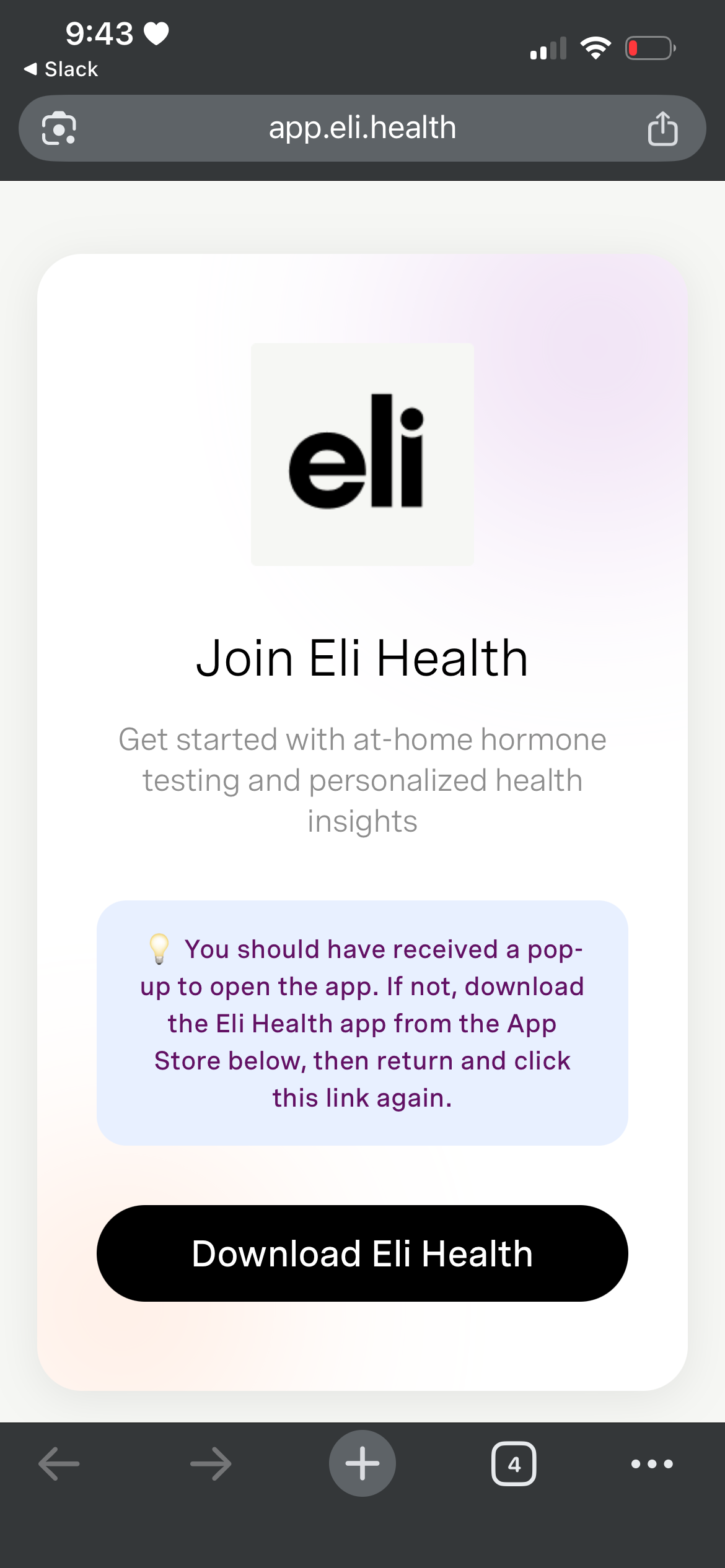
- Blue banner with download instructions
- "Download on the App Store" button (Apple-compliant)
- Automatic attempt to open app (fails gracefully)
Desktop/Non-iOS Device
When a non-iOS user clicks a deep link (Android, desktop, etc.), they see:
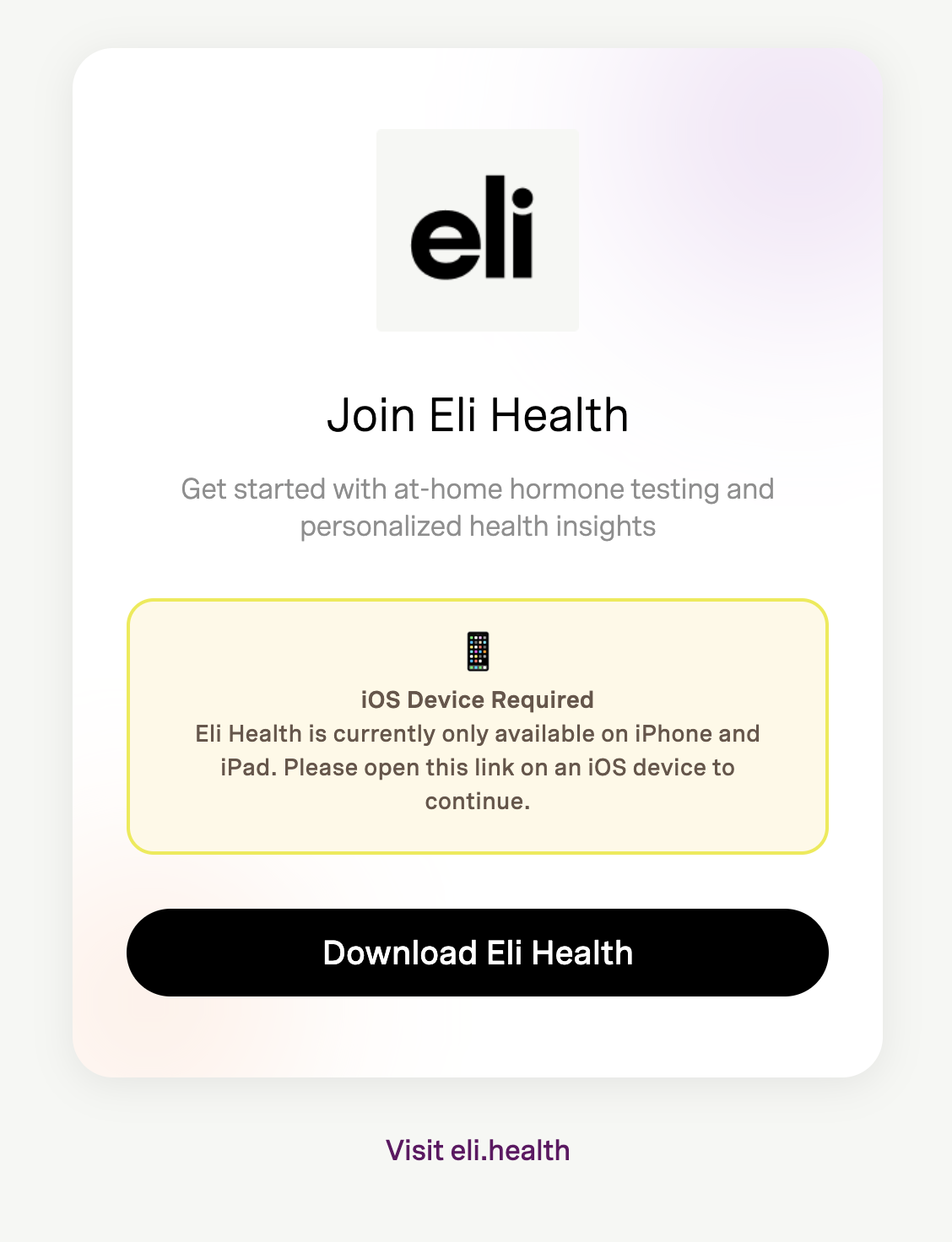
- Yellow warning: "iOS Device Required"
- Message explaining app is only available on iPhone/iPad
- Still shows App Store link for reference
Password Reset Page
Password reset links have additional warnings about mobile device requirement:
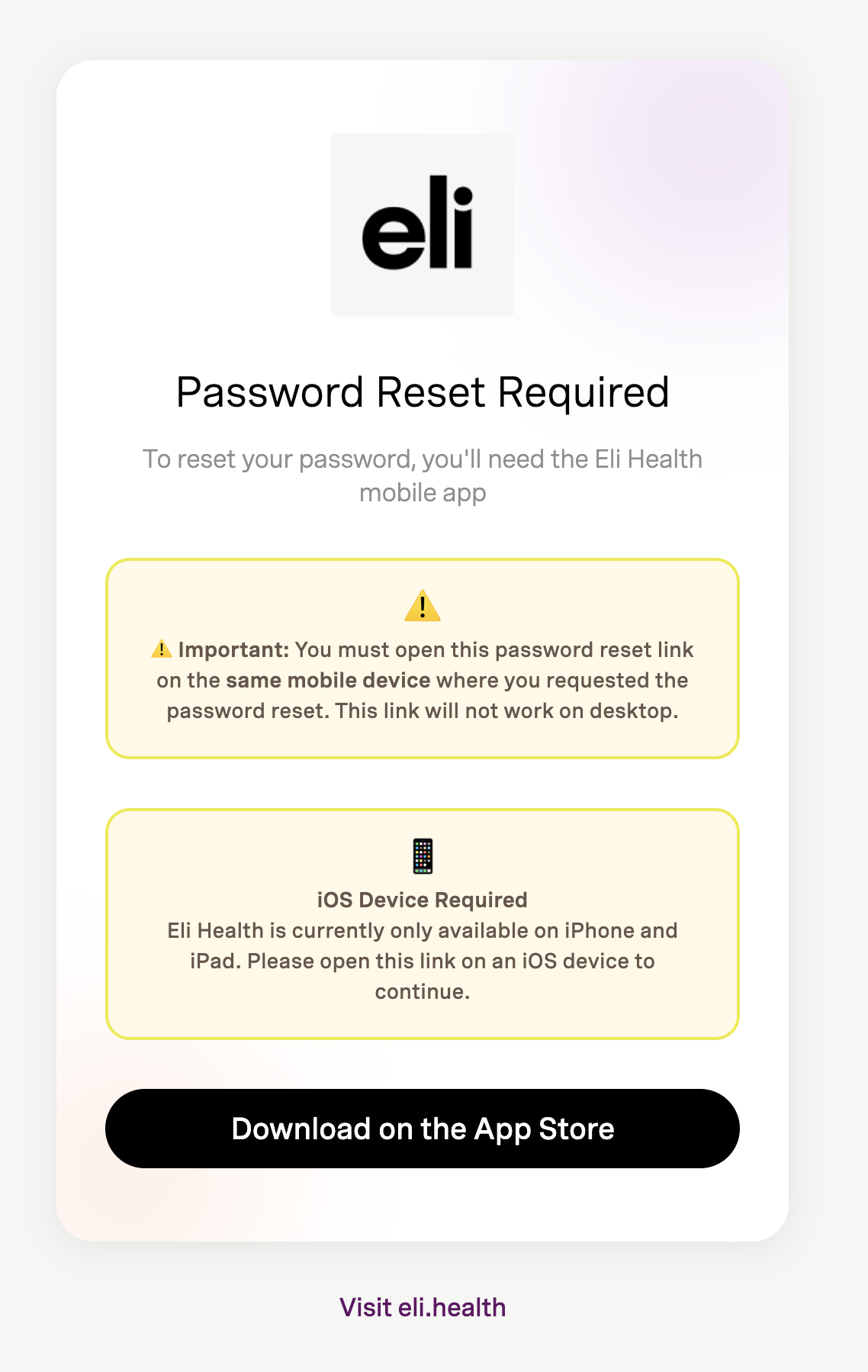
- Orange warning: Must open on same mobile device
- Clear instructions for mobile users
- Prevents confusion from desktop attempts
Creating Marketing Links
Basic Link Structure
https://app.eli.health/signup?utm_source=SOURCE&utm_medium=MEDIUM&utm_campaign=CAMPAIGN
Required Parameters
Always include these UTM parameters for tracking:
| Parameter | What It Tracks | Example |
|---|---|---|
utm_source | Where traffic comes from | instagram, newsletter, facebook |
utm_medium | Type of marketing | social, email, cpc |
utm_campaign | Campaign name | summer_2024, product_launch |
campaign_id | (Optional) Unique ID | IG_SUMMER_001 |
Link Examples
Email Newsletter:
https://app.eli.health/signup?utm_source=newsletter&utm_medium=email&utm_campaign=january_2024
Instagram Bio Link:
https://app.eli.health/signup?utm_source=instagram&utm_medium=social&utm_campaign=bio_link
Facebook Ad:
https://app.eli.health/signup?utm_source=facebook&utm_medium=cpc&utm_campaign=hormone_health&campaign_id=FB_123
TikTok Campaign:
https://app.eli.health/signup?utm_source=tiktok&utm_medium=social&utm_campaign=viral_video_jan
Partner Referral:
https://app.eli.health/signup?utm_source=wellness_partner&utm_medium=referral&utm_campaign=q1_2024
Best Practices
For Marketing Campaigns
✅ DO:
- Always include
utm_sourceandutm_mediumparameters - Use lowercase with underscores for campaign names (
summer_promo_2024) - Test links on iOS devices before launching campaigns
- Use
campaign_idfor tracking specific ad variations - Document all campaigns in your tracking spreadsheet
❌ DON'T:
- Share bare links without UTM parameters
- Use spaces or special characters in parameter values
- Mix uppercase and lowercase randomly
- Launch campaigns without testing the links first
Link Naming Conventions
Use this format for consistency:
utm_campaign naming: [season/month]_[topic]_[year]
Example: spring_wellness_2024

campaign_id naming: [PLATFORM]_[TYPE]_[NUMBER]
Example: FB_AD_001, IG_STORY_042
URL Shorteners
Deep links work with URL shorteners (Bitly, TinyURL, etc.):
✅ Safe to use:
Original: https://app.eli.health/signup?utm_source=instagram&utm_medium=social
Shortened: https://bit.ly/eli-signup-ig
⚠️ Important:
- Always test shortened links before campaigns
- Avoid double-redirects (shortener → shortener → destination)
- Keep the original long URL documented
Platform-Specific Guides
Email Campaigns
When creating email campaigns with deep links:
- Use full URLs (not shortened) in email HTML
- Include UTM parameters for each email type
- Test on mobile device before sending
- Track performance in Firebase Analytics
Example email link:
<a href="https://app.eli.health/signup?utm_source=newsletter&utm_medium=email&utm_campaign=february_2024">
  Join Eli Health Today
</a>
Social Media
Instagram:
- Use in bio, stories (with swipe-up), or link stickers
- Always use
utm_source=instagram
Facebook:
- Works in posts, ads, and messenger
- Use
utm_source=facebook&utm_medium=cpcfor paid ads
TikTok:
- Use in bio or profile links
- Use
utm_source=tiktok&utm_medium=social
Twitter/X:
- Works in tweets and bio
- Consider using shortener for character limits
Paid Advertising
For paid campaigns, include detailed tracking:
https://app.eli.health/signup?utm_source=google&utm_medium=cpc&utm_campaign=hormone_testing_jan&campaign_id=GGL_SEARCH_001
Track each ad variation with unique campaign_id values.
Special Use Cases
Password Reset Links
⚠️ Important: Password reset links MUST be opened on a mobile device.
Users will see a warning if they open on desktop:
"You must open this password reset link on the same mobile device where you requested the password reset."
Where password reset links come from:
- Automatically generated by Firebase when user requests password reset
- Should not be manually created by marketing
- Automatically includes necessary security tokens
Influencer Campaigns
Create unique links for each influencer:
https://app.eli.health/signup?utm_source=influencer_name&utm_medium=social&utm_campaign=influencer_q1&campaign_id=INF_001
This allows you to track which influencers drive the most signups.
QR Codes
Deep links work great in QR codes:
- Generate QR code using
https://app.eli.health/signup?utm_source=qr_code&utm_medium=offline&utm_campaign=event_name - Print on marketing materials
- Users scan → link opens → app opens (or download page)
Testing Your Links
Before Campaign Launch
- Create test link with all UTM parameters
- Send via iMessage to yourself (don't type in browser)
- Tap link on iPhone
- Verify app opens to correct screen
- Check Analytics in Firebase (next day)
Test Checklist
- Link opens app on iOS device
- Link shows download page when app not installed
- All UTM parameters are present and correct
- Campaign name follows naming conventions
- Link works through URL shortener (if using)
- Analytics tracking confirmed in Firebase
Tracking Results
Where to View Data
Campaign performance is tracked in Firebase Analytics:
- Open Firebase Console
- Go to Analytics → Events
- Look for
account_createdevent - Filter by campaign parameters
Key Metrics
Track these metrics for each campaign:
- Click-through rate: How many clicked the link
- App installs: New installs attributed to campaign
- Signups: Completed registrations with campaign data
- Cost per acquisition: Campaign cost / signups
Campaign Attribution
When users sign up through your deep link, their account is tagged with:
- Campaign source
- Campaign medium
- Campaign name
- Campaign ID (if provided)
This data is available for cohort analysis and user segmentation.
Common Questions
Q: Can I use these links on Android? A: Yes, but Android users will see a download page since there's no Android app yet. Their campaign data is still tracked.
Q: Do links work on desktop? A: Signup links work but show a download page. Password reset links show a warning to use mobile.
Q: How long until analytics data appears? A: Campaign data can take 24-48 hours to appear in Firebase Analytics.
Q: Can I test without affecting real data?
A: Yes, use the development URL: https://dev.eli-app.com/signup?utm_source=test&utm_medium=testing
Q: What if I forget UTM parameters? A: The link will work, but you won't be able to track the campaign's performance. Always include parameters.
Q: Can I change a link after sending it? A: No, links are static. Plan your campaign structure before launch.
Need Help?
For Marketing Questions:
- Contact the marketing team lead
- Review this guide
- Check Firebase Analytics dashboard
For Technical Issues:
- Contact the development team
- Include: link that's not working, device type, expected vs actual behavior
- See Technical Documentation
Quick Reference
Essential Links
Production Signup: https://app.eli.health/signup
Dev Testing: https://dev.eli-app.com/signup
Staging Testing: https://staging.eli-app.com/signup
Template Link
Copy and customize:
https://app.eli.health/signup?utm_source=YOUR_SOURCE&utm_medium=YOUR_MEDIUM&utm_campaign=YOUR_CAMPAIGN
Parameter Values
Common utm_source values:
newsletter,instagram,facebook,tiktok,google,partner_name
Common utm_medium values:
email,social,cpc,referral,organic,offline
Remember: Always test before launching! 🚀